








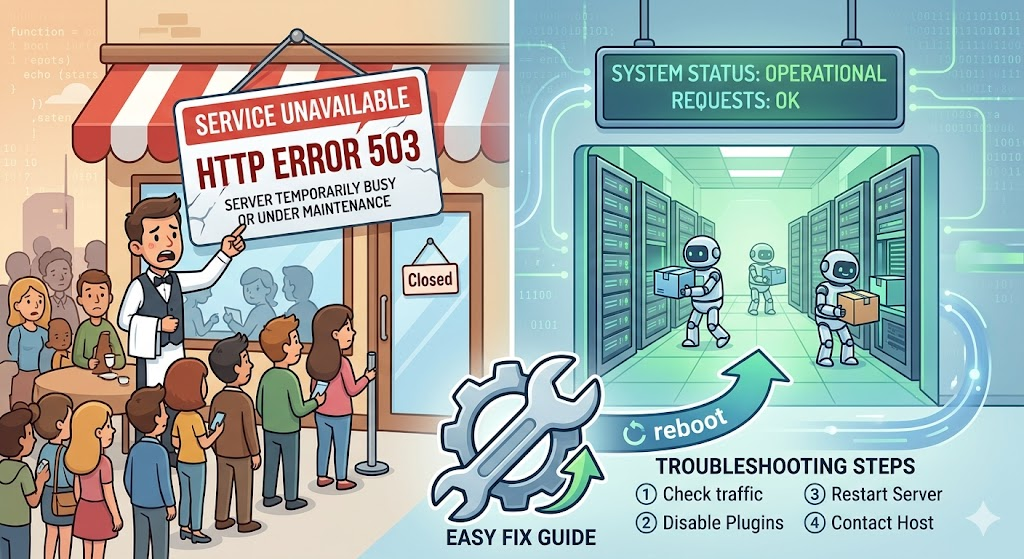
Have you ever tried to visit a website only to see a message saying “Service Unavailable”? That is the HTTP error 503. It means the website’s server is currently unable to handle your request. Think of it like a busy restaurant that has a long line out the door. The restaurant is still there, but they cannot let any more people in right now. This usually happens because the server is too busy or is undergoing some quick maintenance.
When you see the HTTP error 503, it is important to remember that it is usually temporary. Most of the time, the server just needs a few minutes to catch its breath. It is not a permanent “broken” link like a 404 error. Instead, it is a sign that the server is working hard to protect itself from crashing. In this guide, we will look at how to fix this issue so your visitors can see your content again.
Common Reasons for the Service Unavailable Message
There are a few main reasons why your site might show the HTTP error 503. One common cause is a sudden spike in traffic. If a lot of people visit your site at the exact same moment, the server might get overwhelmed. Another reason could be a plugin or a theme that is not working correctly. Sometimes, a single piece of bad code can take up all the server’s energy, leaving nothing left for your guests.
We also see this error when the server is being updated. Just like your phone needs to restart for updates, servers do too. If the update takes too long, the HTTP error 503 will pop up. Lastly, your hosting plan might simply be too small for your growing business. If your “house” is too small for all your guests, you might need to move to a bigger space. Identifying the cause is the first step to a fast fix.
Quick Summary of 503 Error Solutions
| Solution Method | Best For | Difficulty Level |
| Refresh the Page | Temporary glitches | Very Easy |
| Restart the Server | Clearing stuck processes | Easy |
| Disable Plugins | Identifying bad code | Medium |
| Check Server Logs | Deep technical issues | Advanced |
| Increase Resources | High traffic sites | Easy (Contact Host) |
Try Refreshing the Page First
The simplest fix for an HTTP error 503 is often the most overlooked one. Sometimes, the server just had a tiny “hiccup” that lasted a fraction of a second. By clicking the refresh button or pressing F5, you ask the server for the page one more time. Many times, the server will be ready the second time around. It is a quick win that saves you a lot of technical stress.
Wait about 30 to 60 seconds before you hit refresh. If the HTTP error 503 disappears, then you know it was just a temporary overload. This happens often if you are running a big sale or if a post goes viral on social media. If refreshing does not work after a few tries, then it is time to look a little deeper into the backend of your website.
Restart Your Web Server or Hosting Service
If you have access to your server settings, a simple restart can work wonders. Restarting clears out the “temporary memory” of the server. It stops any processes that might be stuck or taking up too much power. Think of it like giving your computer a fresh start after it starts acting slow. This is a very effective way to clear a stubborn HTTP error 503.
If you use a managed hosting service, you can usually find a “Restart” button in your control panel. If you are not sure how to do this, don’t worry. You can always ask your hosting provider to do it for you. A quick reboot often flushes out the “clogs” in the system. Once the server comes back online, check your site again to see if the HTTP error 503 is finally gone.
Check for Ongoing Server Maintenance
Sometimes, the HTTP error 503 is actually a good sign. It might mean your hosting company is making the server faster or safer. Most servers are set to show this error automatically while they are being updated. This prevents data from being lost or broken during the update process. It is a safety net for your website’s information and files.
Check your email or your hosting provider’s status page. They usually send out a notice before they start maintenance. If you see that work is being done, you just need to wait a little while. The HTTP error 503 will go away on its own once the maintenance is finished. It is always better to have a safe, updated server than a fast one that is at risk.
Disable Your Website Plugins Temporarily
If you use WordPress, a bad plugin is a very common cause of the HTTP error 503. Sometimes two plugins fight with each other, or one is just poorly made. To find the problem, you should turn off all your plugins at once. If your site starts working again, you know one of those plugins was the troublemaker. It is like a “process of elimination” game.
You can do this easily through your FTP or File Manager. Just rename the “plugins” folder to something like “plugins-old.” This tells the website to ignore them for a moment. If the HTTP error 503 stops, rename the folder back and turn the plugins on one by one. When the error comes back, you have found the “bad apple.” Delete that plugin and find a better version to keep your site running smooth.
Switch to a Default Website Theme
Just like plugins, your website’s “clothes” or theme can cause an HTTP error 503. If your theme is old or has a bug in its code, it can crash the server connection. To test this, try switching back to a basic, default theme. On WordPress, this would be something like “Twenty Twenty-Four.” These themes are very simple and almost never cause server issues.
If the HTTP error 503 goes away after you switch themes, then your main theme needs a fix. You might need to update the theme or reach out to the person who built it. Using a clean and well-coded theme is very important for SEO. Google loves sites that load correctly every time. A broken theme hurts your ranking, so keeping it simple is often the best path forward.
Look Into Your Server’s Resource Limits
Every hosting plan has a limit on how much “power” it can use. This includes things like RAM and CPU usage. If your website gets too big, you might hit these limits. When that happens, the server will show the HTTP error 503 to stop the whole system from breaking. It is the server’s way of saying, “I can’t handle this much work anymore!”
You can check your resource usage in your hosting dashboard. If you see red bars or “100% usage” messages, you have outgrown your current plan. To fix the HTTP error 503 for good, you might need to upgrade to a better plan. Moving from shared hosting to a VPS (Virtual Private Server) can give your site the extra room it needs to grow without any more errors.
Review Your Server Error Logs for Clues
If you are still seeing the HTTP error 503, it is time to act like a detective. Every server keeps a “diary” called an error log. This log writes down every mistake or problem that happens behind the scenes. By reading these logs, you can see exactly which file or piece of code triggered the HTTP error 503. It takes the guesswork out of the process.
You can usually find these logs in a folder called “logs” or “error_log” in your site’s main directory. Look for the most recent dates and times. They will often point to a specific line of code that failed. While the text might look a bit confusing at first, you can copy and paste the error into Google. Usually, someone else has had the same problem and shared a fix!
Check Your Content Delivery Network (CDN)
A CDN is a service that helps your site load faster by sharing the work across many servers. However, if the CDN is having trouble reaching your main server, it might show an HTTP error 503. This is common with services like Cloudflare. Sometimes the problem isn’t your website at all, but the bridge between your site and the rest of the world.
To see if this is the cause, try turning off your CDN for a few minutes. If the HTTP error 503 vanishes, you know the connection between the CDN and your server needs a tweak. You might need to whitelist the CDN’s IP addresses or adjust your security settings. Making sure your CDN and server talk to each other perfectly is key to a fast and reliable website.
Frequently Asked Questions
1. Is an HTTP error 503 bad for my SEO?
If the error only lasts a few minutes, it will not hurt your ranking. However, if your site stays down for hours or days, Google might lower your rank. It is important to fix an HTTP error 503 as quickly as you can to keep your SEO healthy.
2. How is a 503 error different from a 502 error?
A 503 error means the server is too busy or down for maintenance. A 502 error means one server got an invalid response from another server. Both are annoying, but the HTTP error 503 is usually a temporary capacity issue.
3. Can a virus cause a 503 error?
Yes, sometimes a “DDoS attack” can flood your server with fake traffic. This overwhelms the system and triggers the HTTP error 503. Using a good security firewall can help prevent this from happening to your site.
4. Do I need to hire a developer to fix this?
Not always! Most people can fix the HTTP error 503 by refreshing the page or checking their plugins. If those steps don’t work, your hosting support team is usually the next best place to ask for help before hiring a pro.
5. How long does a 503 error usually last?
If it is due to maintenance, it usually lasts 5 to 10 minutes. If it is due to a traffic spike, it might last until the traffic slows down. If there is a code error, it will stay until you fix the broken file causing the HTTP error 503.
6. Does my internet connection cause 503 errors?
Usually, no. The HTTP error 503 is a “server-side” error. This means the problem is with the website’s computer, not your home Wi-Fi or computer. If other sites work fine, the problem is definitely with that specific website.
Conclusion
Dealing with an HTTP error 503 can feel scary, but it is a very manageable problem. By following the steps in this guide, you can find the cause and get your site back to normal. Remember to start with the easy fixes like refreshing and checking your plugins. Most of the time, your site just needs a little bit of attention to start running smoothly again.
If you found this guide helpful, why not share it with a friend who runs a blog? Keeping the internet running fast is a team effort! If you still have questions or found a unique way to fix your HTTP error 503, leave a comment below. We love hearing from our readers and helping you grow your digital business safely and successfully.